Let me guess: You didn’t get into catering to become a spreadsheet jockey. But between writing quotes, tracking orders, and trying to remember which customer ghosted you last month... you might feel like you’re running a data company instead of a catering operation.
Well, good news. AI isn’t here to replace you. It’s here to rescue you.
Tools like ChatGPT and Claude, when paired with your CaterZen reports, can help you:
- Analyze your sales data in seconds, not hours
- Write marketing emails and social posts in half the time
- Spot trends and at-risk customers before they vanish
- Create training guides and SOPs without starting from scratch
And that’s just for starters.
This post gives you dozens of plug-and-play AI prompts across every area of your catering business - especially designed for CaterZen users.
How to Use These Prompts to Analyze CaterZen Reports
1. Log into CaterZen
2. Go to More → Reports → Data Export Reports or Sales Reports
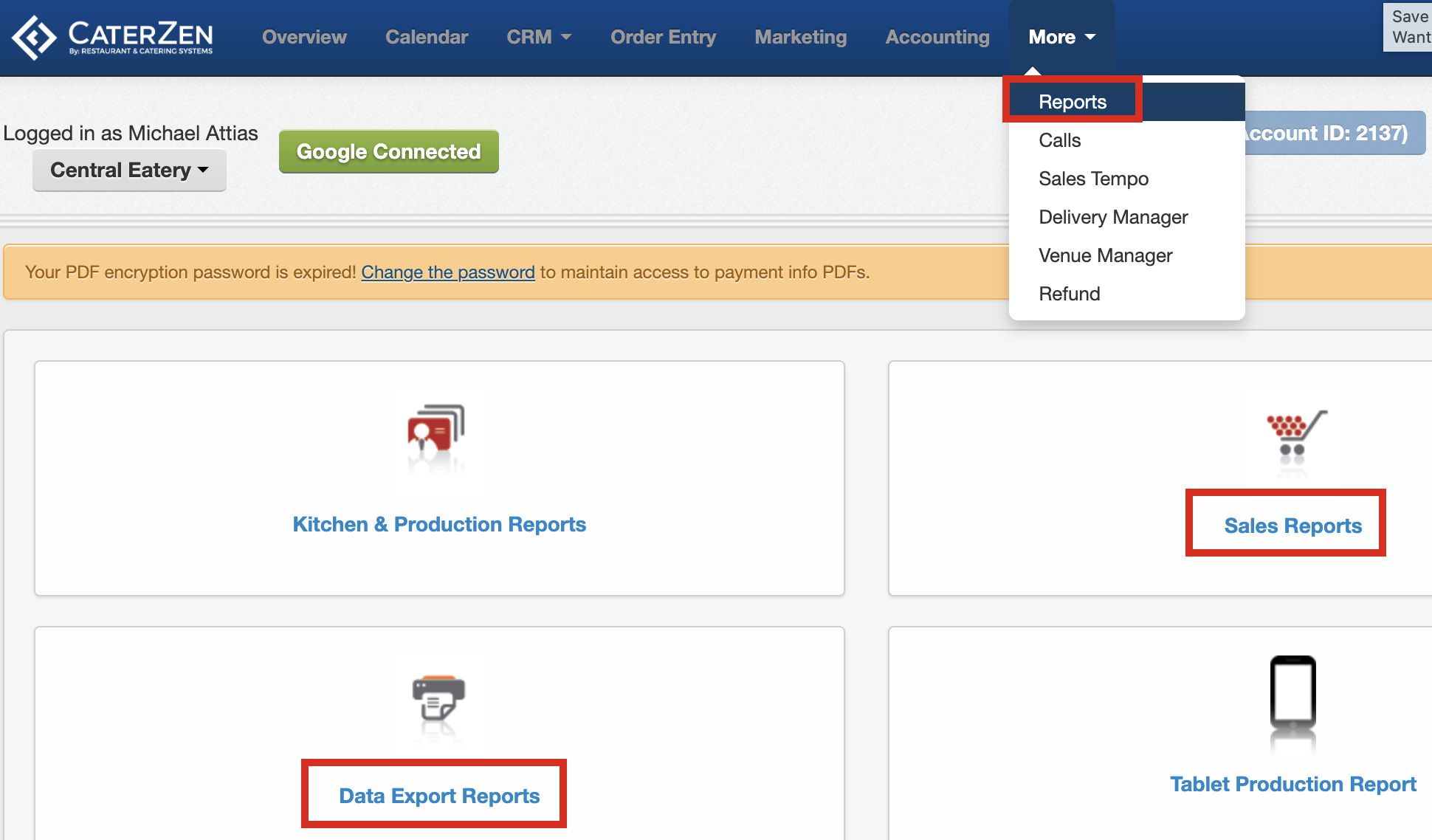
3. Generate and export your report
4. Open ChatGPT, Claude, or another AI tool that accepts uploads
5. Upload your file and paste in the prompt
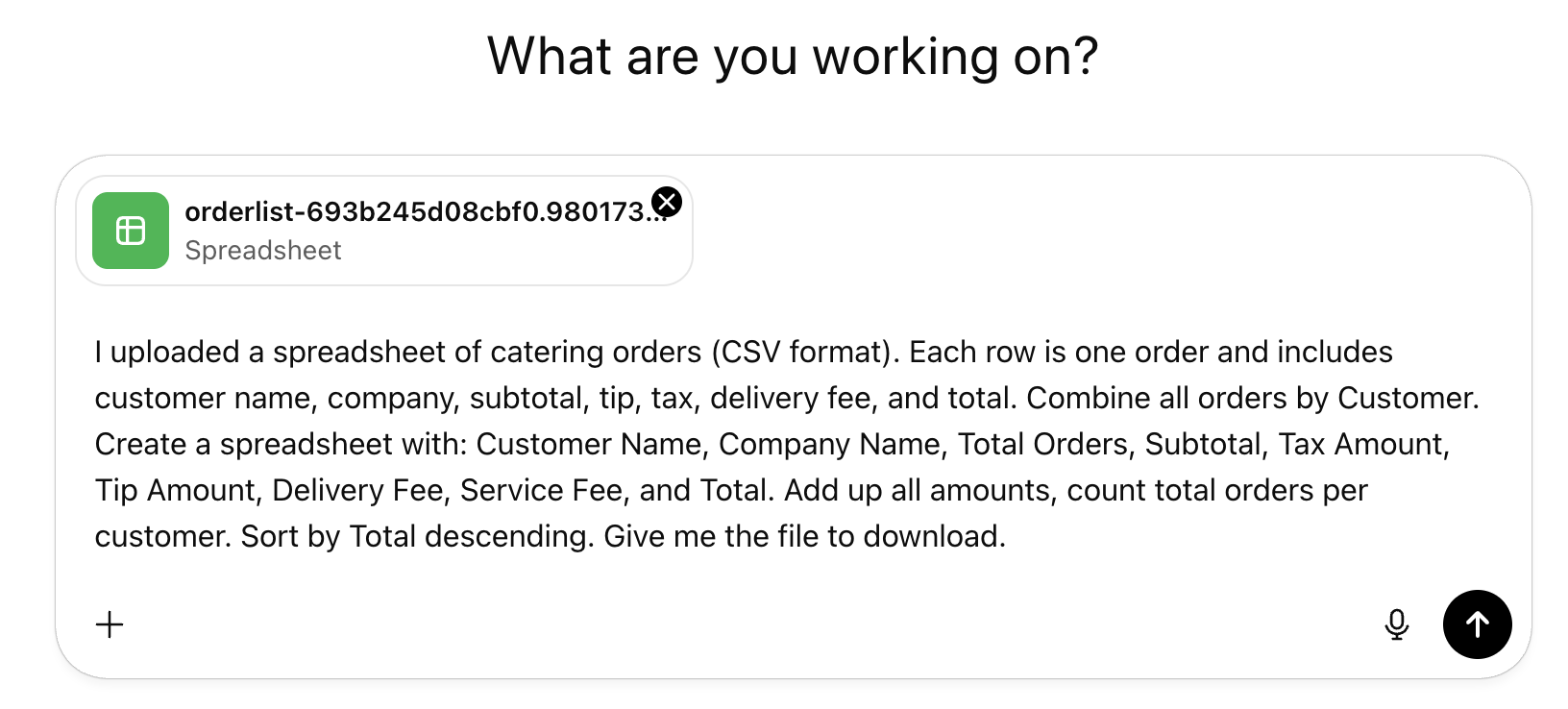 6. Enjoy your insights (and extra free time!)
Part 1: Customer Analysis Prompts
Use With: Order List Report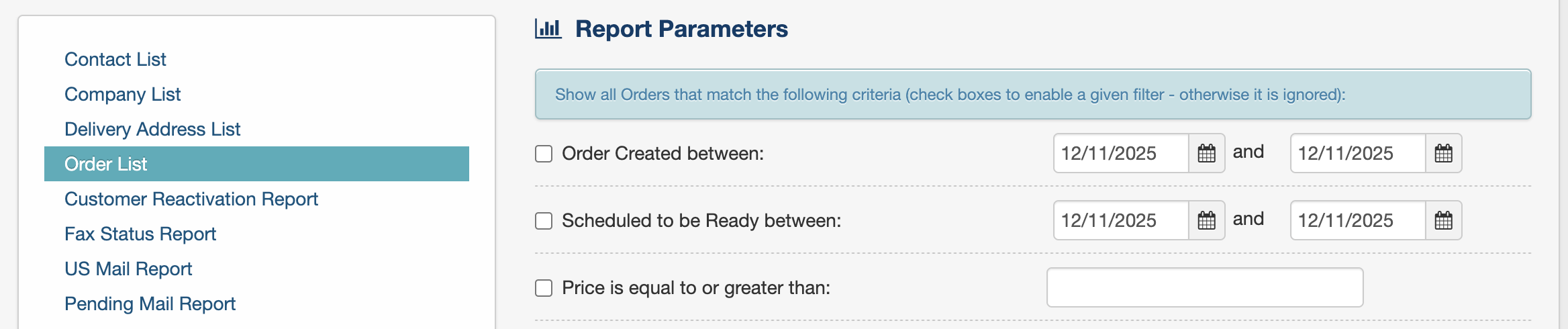
1. Find Your Top Customers by Revenue
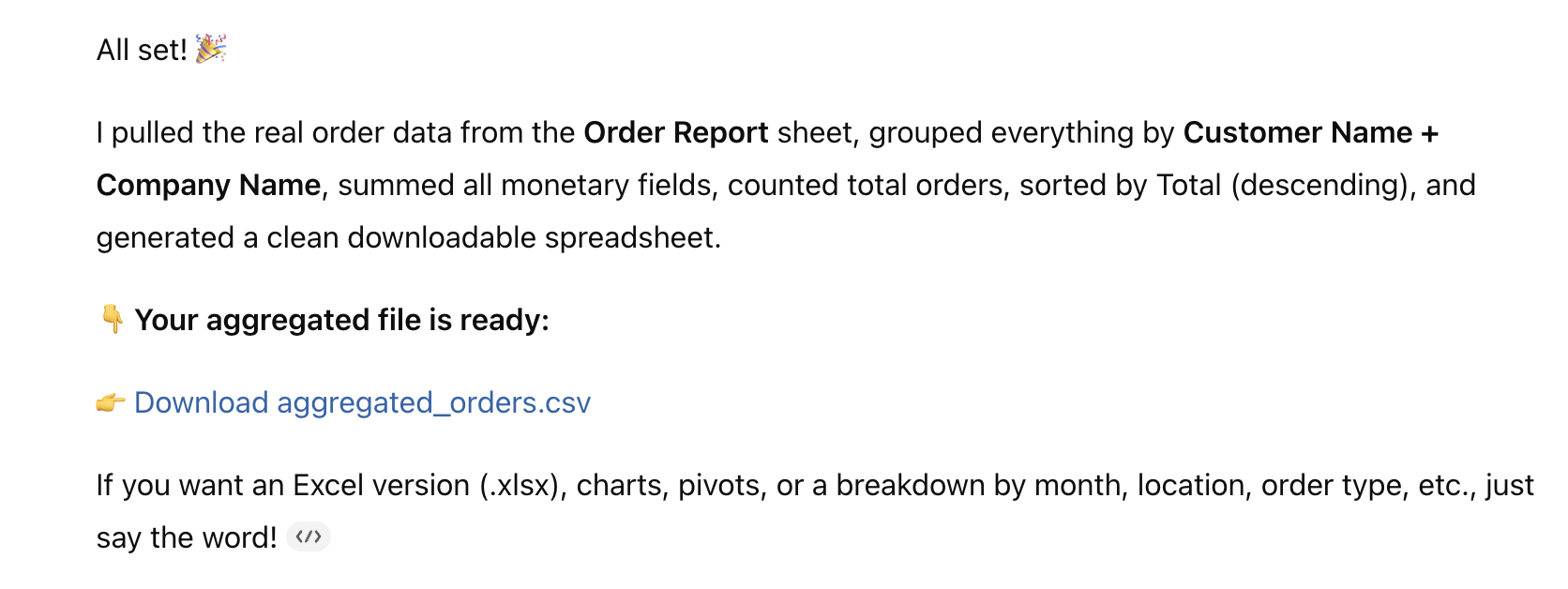
I uploaded a spreadsheet of catering orders (CSV format). Each row is one order and includes customer name, company, subtotal, tip, tax, delivery fee, and total. Combine all orders by Customer. Create a spreadsheet with: Customer Name, Company Name, Total Orders, Subtotal, Tax Amount, Tip Amount, Delivery Fee, Service Fee, and Total. Add up all amounts, count total orders per customer. Sort by Total descending. Give me the file to download.
⬆️ Order List (Uploaded to AI)

⬇️ Aggregated Results (Downloaded from AI)

2. Analyze Orders by Delivery Address
I uploaded a spreadsheet of catering orders (CSV format). Each row is one order and includes customer name, company, subtotal, tip, tax, delivery fee, and total. Find every order delivered to "[ADDRESS]". Return a spreadsheet with only those rows. Include all columns.
3. Compare Customer Spending by Location
I uploaded a spreadsheet of catering orders (CSV format). Each row is one order and includes customer name, company, subtotal, tip, tax, delivery fee, and total. Show a table with: Customer Name, Company Name. For each location, include: # Orders and $ Spent. Include Total Orders and Total Spent columns. Sort by Total Spent descending.
4. Customer Spending by Month
For customer [CUSTOMER NAME], calculate monthly spend: Month, Number of Orders, Total Spent, Average Order Value. Include a chart of spending trends.
5. Identify At-Risk Customers
Identify customers who ordered 3+ times in any quarter but haven’t ordered in the last 60 days. List: Customer Name, Last Order Date, Total Orders, Total Spend. Sort by Total Spend descending.
Part 2: Menu & Product Prompts
Use With: PLU Sales Report
6. Best-Selling Items by Category
I uploaded a CSV file showing individual catering menu item sales. Each row includes the item name, category, quantity sold, total revenue, and total feeds. Please filter for items in the “[CATEGORY]” group. Group similar items together. Create a spreadsheet showing: Item Description, Total # Sold, Total Dollars Collected (Net), Total Feeds. Sort by # Sold, highest to lowest.
7. Menu Profitability Analysis
I uploaded a CSV file with sales data for individual catering menu items. Each row shows the item description, quantity sold, and total revenue. Analyze and categorize each item as one of: Stars (high sales, high revenue), Workhorses (high sales, lower revenue), Puzzles (low sales, high revenue per item), or Dogs (low sales, low revenue). Create a spreadsheet with each item, its category, and a recommendation: promote, reprice, or consider removing.
8. Seasonal Menu Performance
I uploaded two CSV files showing menu item sales data for [MONTH 1] and [MONTH 2]. Each file contains rows for each menu item with columns for item name, quantity sold, and total revenue. Compare performance across the two periods. Identify: 1) Items with increased sales, 2) Items with decreased sales, 3) New high performers, and 4) Underperformers to watch.
Part 3: Sales & Revenue Prompts
Use With: Order List Report, Sales Journal Report
9. Sales by Event Type
Break down orders by Event Type. Show: Total Orders, Revenue, Average Order Size, % of Total. Recommend high-potential segments.
10. Day-of-Week Trends
Analyze sales by day of week. Show: Day, # of Orders, Revenue, Avg Order Size. Highlight best and slowest days.
11. Lead Time Insights
Calculate average lead time per order (Order Date vs Delivery Date). Break down by customer type, order size. Flag rush orders (<24 hrs).
Part 4: Sales & Marketing Prompts (No File Needed!)
12. Cold Email to a Corporate Prospect
Write a cold email to an office manager at a 50-100 employee company. My catering company is [NAME], we specialize in [CUISINE/NICHE]. Offer a discount or free item. Keep it under 150 words.
13. Quote Follow-Up Email
Follow up on a quote for [EVENT TYPE] for [# GUESTS] on [DATE]. Mention we’re holding the date but need confirmation by [DEADLINE]. Offer to tweak the menu.
14. Lapsed Client Reactivation Email
Write a "we miss you" email for a client who hasn’t ordered in 90+ days. Last order was [DESCRIBE IT]. Make it friendly, include an incentive.
15. 30-Day Social Media Calendar
Create a 30-day catering social media plan. Include food photos, behind-the-scenes, testimonials, seasonal promos, FAQs. Brief description for each day.
Part 5: Operations & Training Prompts
16. SOP for Buffet Setup
Create a checklist-style SOP for setting up a buffet line at a corporate lunch. Include equipment, presentation tips, timing.
17. Training Script for New Sales Rep
Write a phone script for a new catering rep taking inbound inquiries. Include how to qualify, handle objections, and close.
18. Client FAQ Document
Create a helpful FAQ: order minimums, lead time, payment methods, cancellation policy, dietary options.
Part 6: Menu Innovation Prompts
19. Dietary Menu Additions
Suggest 3-4 catering-ready dishes each for: vegan, vegetarian, gluten-free, and dairy-free. Cuisine: [YOUR CUISINE].
20. Seasonal Menu Ideas
Recommend dishes for [SEASON]. Include 2 apps, 2 entrees, 2 sides, and 2 desserts using seasonal ingredients.
Part 7: AI-Enhanced Food Photography
21. Enhance an Existing Food Photo
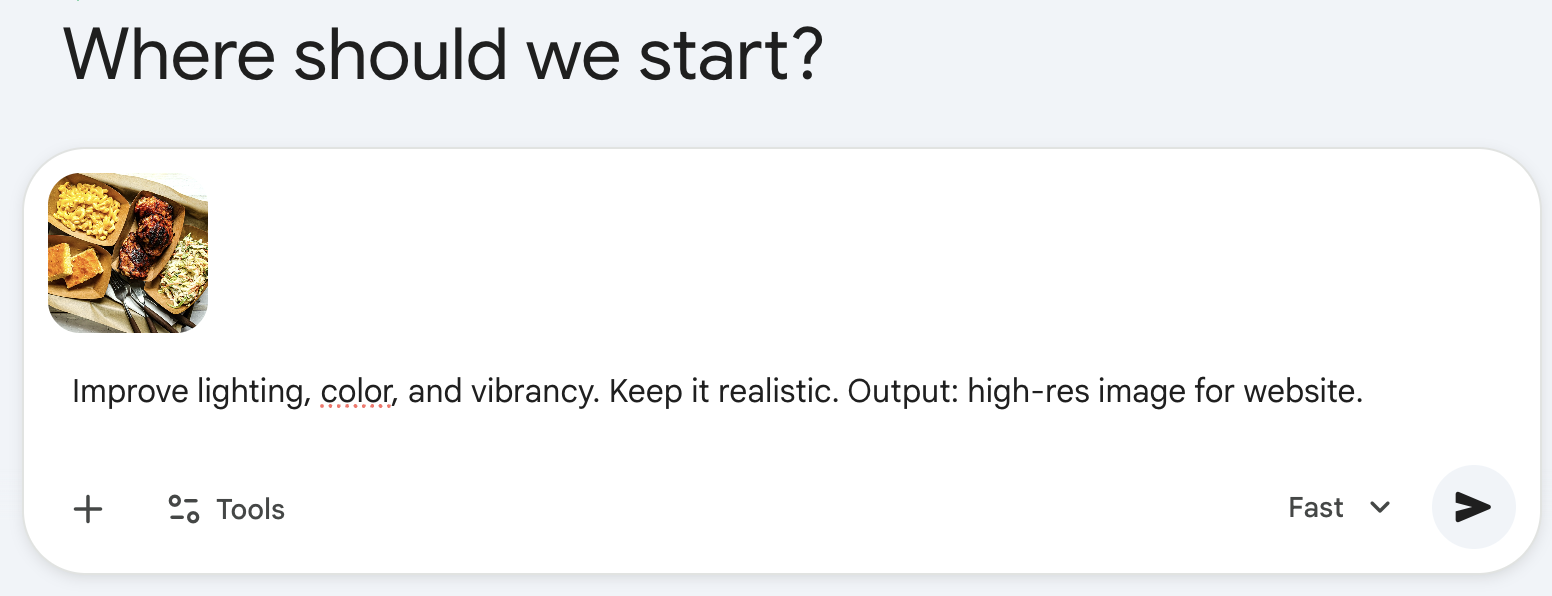
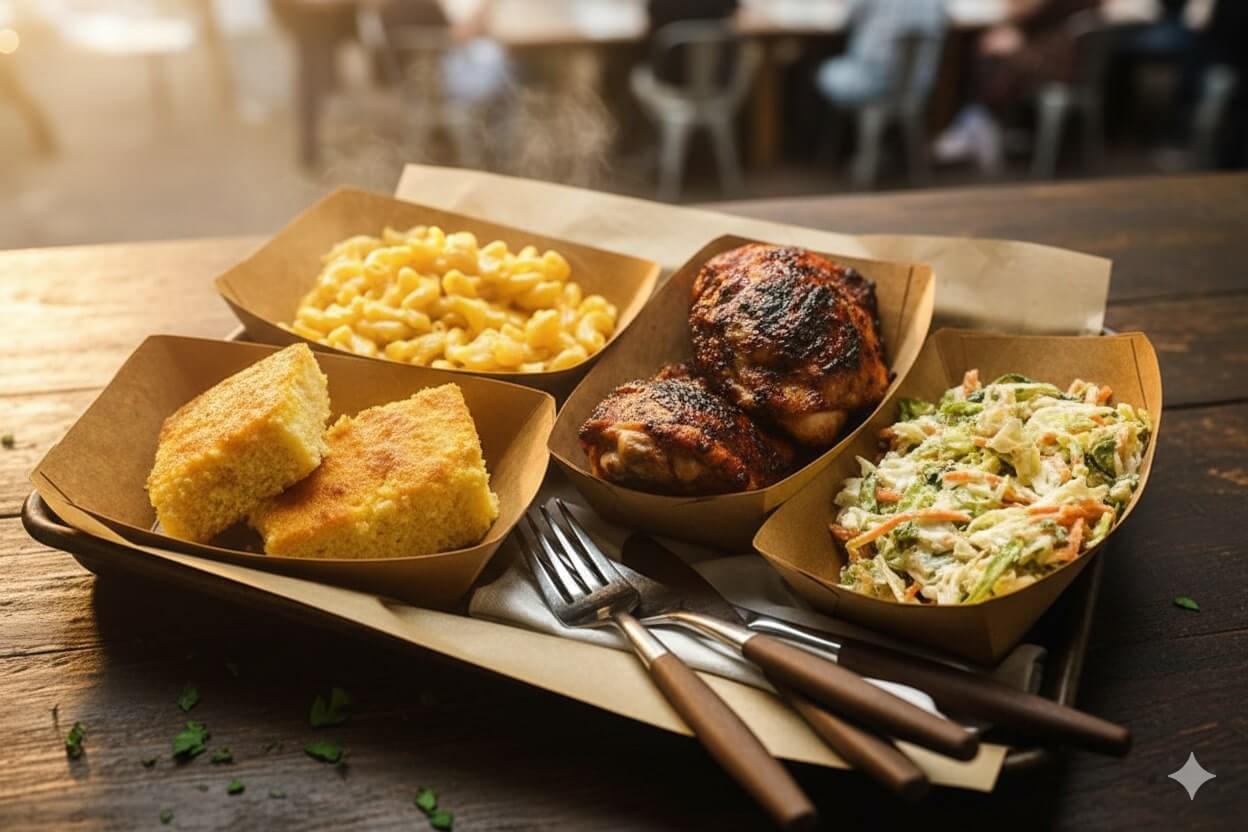
[Upload image] Improve lighting, color, and vibrancy. Keep it realistic. Output: high-res image for website.
⬆️ Image + Prompt (Sent to AI)
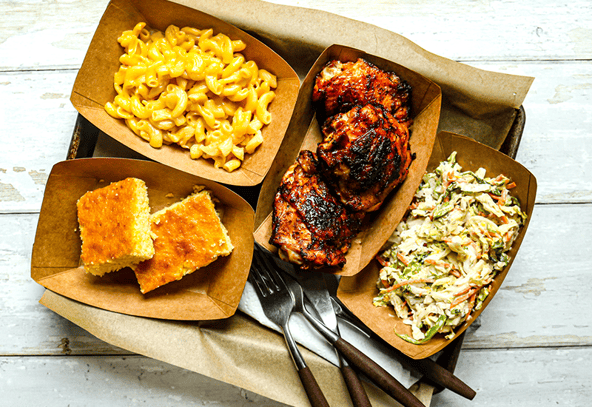
⬇️ Image Response (Received from AI)
22. Generate a Styled Image
Create an AI image of a taco bar buffet in a modern office setting. Style: editorial, natural lighting.
Unlock All 50+ Prompts In One Resource
Download your 50+ AI Prompt Toolkit below:
Ready to Stop Drowning in Busywork?
If you’re already a CaterZen user, these prompts are your shortcut to more time, better decisions, and smoother days.
If you’re not using CaterZen yet? You’re working harder than you need to.
Book your free demo or start your 30-day free trial today.
Let AI and CaterZen take the chaos off your plate.