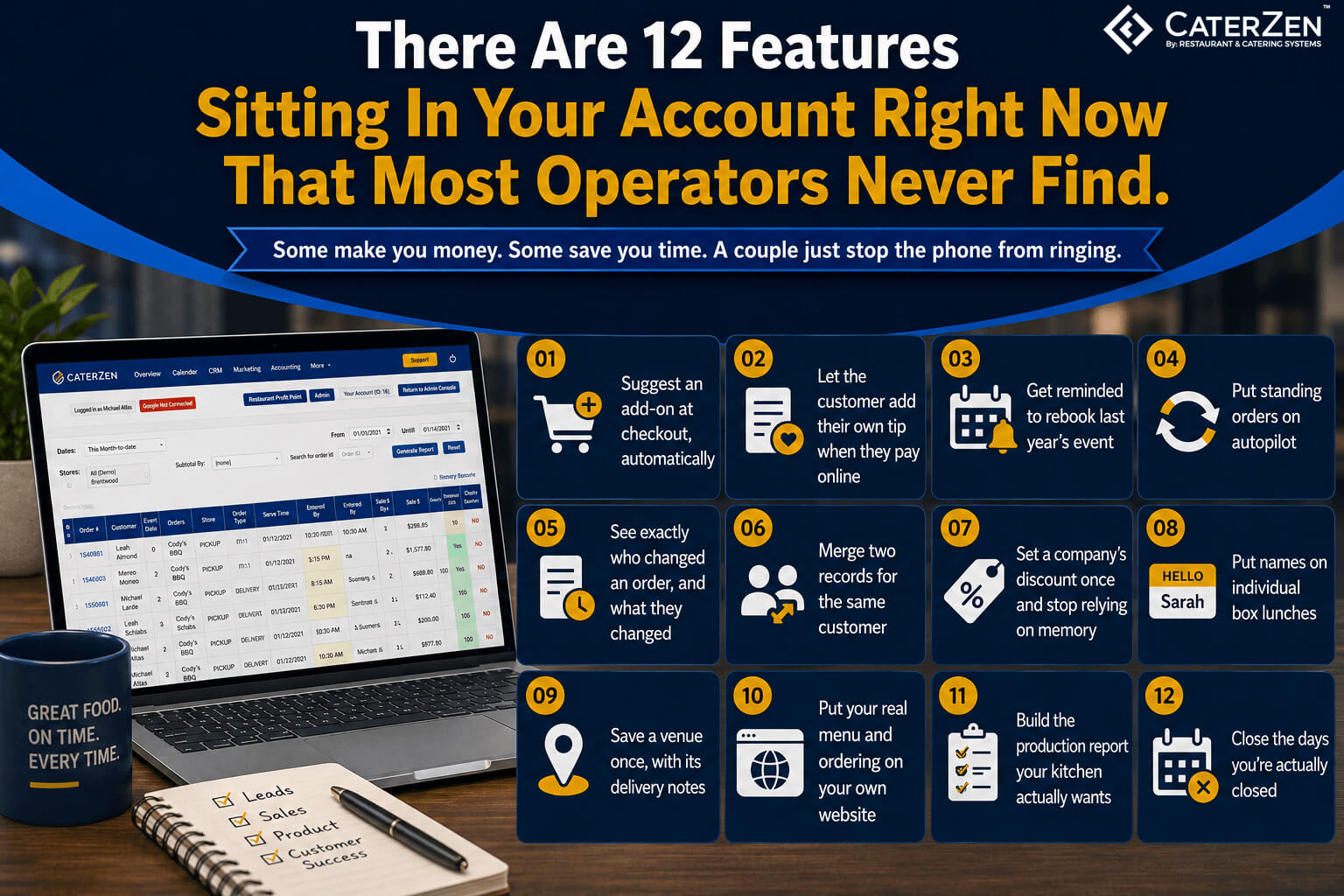

There are twelve features sitting in your CaterZen account right now that most operators never find.
I know, because I ran every CaterZen support ticket since 2015 - just under 27,000 of them - through an AI tool, looking for one specific pattern: the reply that comes right after we answer somebody's question.
It's always some version of: "I had no idea you could do that."
CaterZen's grown into a lot of software over the years. Hundreds of features, more added every year. Some get announced. Some get demoed. But plenty just get built and shipped, and from there it's on you to stumble onto them - in a support call, in a training session, or by accident at 11pm trying to fix an order.
We're getting better about walking new clients through all of it during onboarding. But if you signed up more than a year or two ago, there's a good chance a few of these passed you by.
So here are twelve of them, pulled straight from what actual operators told us they didn't know existed. Some make you money. Some hand you back an afternoon a week. A couple just stop the phone from ringing.
Where something needs a module switched on, I'll tell you. If it's not on, one email to support fixes it.
Money you're leaving on the table
1. Suggest an add-on at checkout, automatically
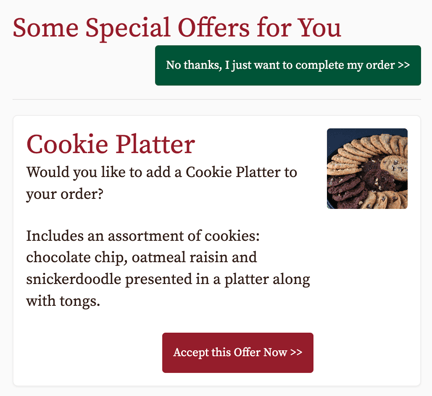
Admin → Menu → Upsell Menu Item → Configure Upsell Menu Items
Attach specific add-ons to specific menu items. Cookies with the sandwich trays. Drinks with the BBQ package. Extra sauce with the ribs. The second a customer drops the parent item in their cart, the offer shows up before checkout.
It's "do you want fries with that" for catering - except it never forgets to ask and never gets slammed on a Friday.
Set it once. It runs on every online order after that.
There's also an Unattached Upsell Item option on that screen. That's an offer that shows up no matter what's in the cart - useful for a dessert tray or a drink package you want in front of everybody.
Two reports live under Reports → Sales Reports. 'Upsell Configured Menu Items' shows what you've set up. The Upsell Items Report shows what it earned — pick a date range and it gives you total item sales, non-upsell sales, sales that came from upsell offers, and the percentage of additional revenue those offers added on top.
Needs the Upsell Module switched on.
Learn more about the Upsell Module.
2. Let the customer add their own tip when they pay online
Admin → Restaurant Locations → your location → Online Ordering Settings → Allow tips to be added to orders at checkout
There's a gratuity field on the online payment page - the one the customer sees when they click Pay Invoice. They can leave a tip themselves, at the exact moment they're happiest with you, after the event went great, not while they're on hold with your office.
Requires the Pay Through Invoice module and the "Allow customers to pay via Invoice" setting under Admin → Global Settings → Credit Card Processing. The tips checkbox above is off by default — that's the one people miss.
3. Get reminded to rebook last year's event
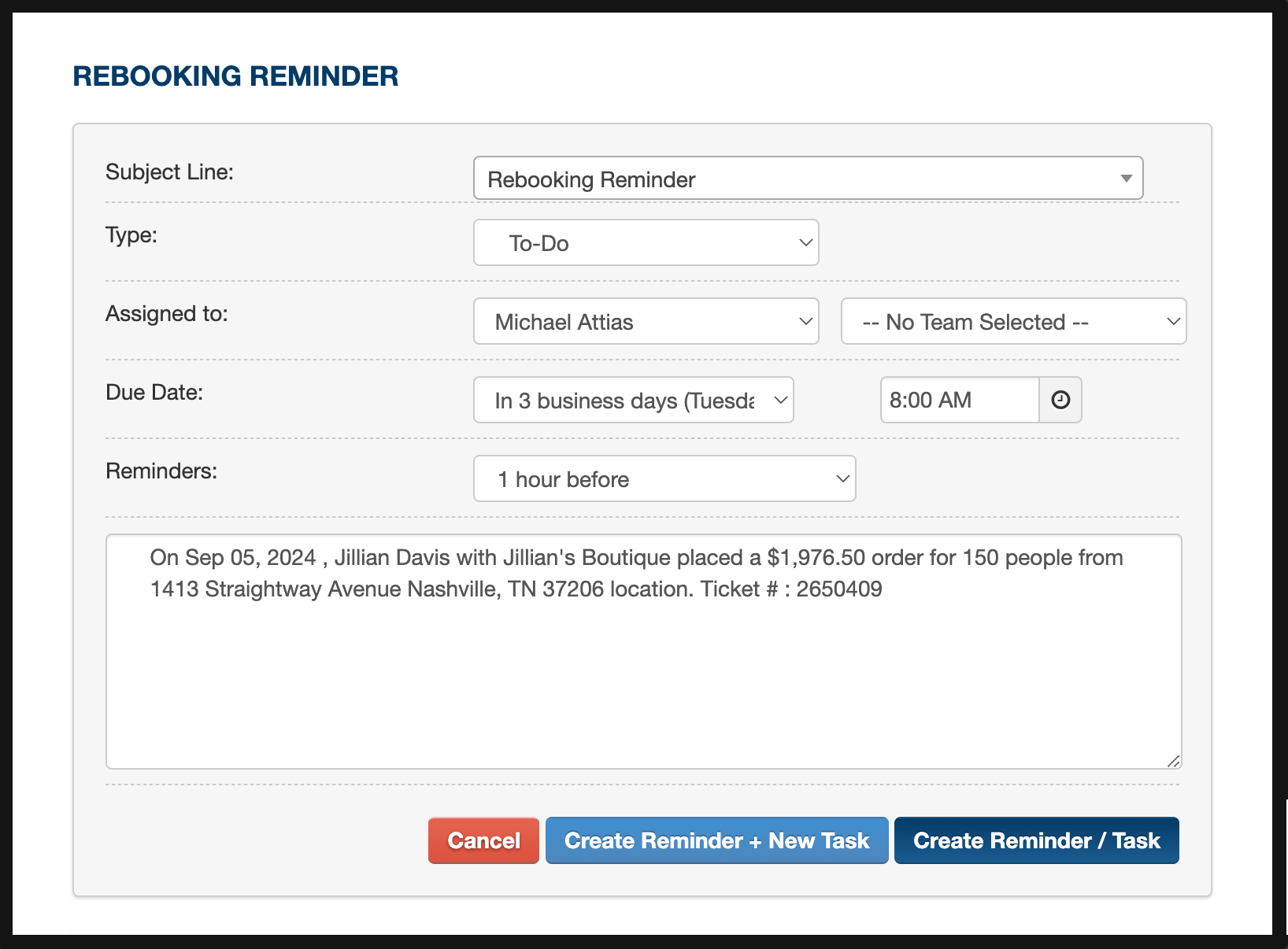
Admin → Global Settings → Order Entry Settings → Anniversary Reminder Setting
Turn this on, and every time you save an order or send a quote, CaterZen offers to set a follow-up for whatever date you pick. It writes the task straight into your CRM and your calendar - headcount and details already filled in. If you've connected Google Integration, it syncs to your Google Calendar too.
And you don't have to wait for the prompt. Schedule Reminder sits in the Choose a Function dropdown on any order or quote, so you can set one on an order you took last month.
Catering is a repeat business dressed up as a one-off business. The company that fed 60 people last October is feeding 60 people this October. The only question is whether they call you first, or someone else does.
This is the single most under-switched-on feature we found. It shows up in six tickets across eleven years - and more than once, our reply is some version of "yours wasn't turned on, I just flipped it for you."
4. Put standing orders on autopilot
CRM → open the contact → find the order in their list → click the repeat (⟳) icon
If a customer orders the same thing every Friday, you should be entering that order once. Not fifty-two times. Recurring orders repeat daily, weekdays, Mon/Wed/Fri, Tue/Thu, weekly, monthly, or yearly - with an end date or a set number of repeats. Each one generates its own invoice.
Two things before you turn it loose. Every generated order is a real order, so it lands on your aging report as a receivable - that catches people off guard when they set up a full year in one sitting. And customers can't cancel a future order themselves through the portal. That call comes back to your office.
Requires the Recurring Orders module.
Hours back in your week
5. See exactly who changed an order, and what they changed
.png?width=2392&height=1384&name=ticket-audit-log-2%20(1).png)
Open the order → Choose a Function → Ticket Audit Log
This is the one I most wish every operator knew about. Every order carries a full change history - date, user, exact change. Items added, items deleted, tax rate changed from this to that, delivery address wiped, order cancelled and un-cancelled. Exports to Excel.
It answers the question behind most bad Monday mornings: who moved this, and when? One caterer described the exact problem, not knowing the answer was two clicks away, on the order itself:
"We ran our daily sales report on 2/18 which showed that sale. Then she moved the order to 2/22 and when we went back to see the sales for 2/15, we had no idea where the change in numbers happened."
One catch, so it doesn't bite you: the audit log lives on the order. Delete the order outright, and the log goes with it. Train your team to cancel, not delete, whenever there's a chance you'll need the history.
6. Merge two records for the same customer
CRM → Merge Contacts (left sidebar)
Every catering database has the same person in it three times. Once from an online order. Once from a phone order somebody typed slightly differently. Once from a spreadsheet import. Their history is scattered across all three, so nobody notices they're actually your fourth-biggest account.
Merging moves the orders and payments from the duplicate onto the record you keep. Pick the destination first, then the source.
Four tickets mention this in eleven years. Not because it's broken - because almost nobody knows it's there.
7. Set a company's discount once and stop relying on memory
CRM → open the company → Company Discount [Edit], and "Is tax exempt" on the same screen
Negotiated 10% off for the hospital? University is tax-exempt? Set it on the company record and it applies itself from then on - phone orders, online orders, no matter which contact is ordering or who in your office is taking it.
The alternative is what most offices actually do: everybody tries to remember which accounts get what, somebody forgets, and you either eat the discount or have an awkward phone call.
To see every company discount you've got in one list: Admin → Global Settings → Client/ Company Discounts.
Looking sharper to the customer
8. Put names on individual box lunches
Admin → General Settings → Online Order Settings → Menu Buddies Settings
This adds a "this is for…" field to each item on an order. The customer types a name, it flows through to your kitchen paperwork, and you label the boxes.
For office catering, that's the difference between dropping off a stack of identical boxes and handing every person their own lunch with their name on it. Costs you a marker. It's the thing the office manager remembers you for.
It's a single checkbox, available on every account, and it has one of the widest awareness gaps we found. One customer's entire support ticket read:
"What are 'Menu Buddies'?"
Learn more about "Menu Buddies".
9. Save a venue once, with its delivery notes
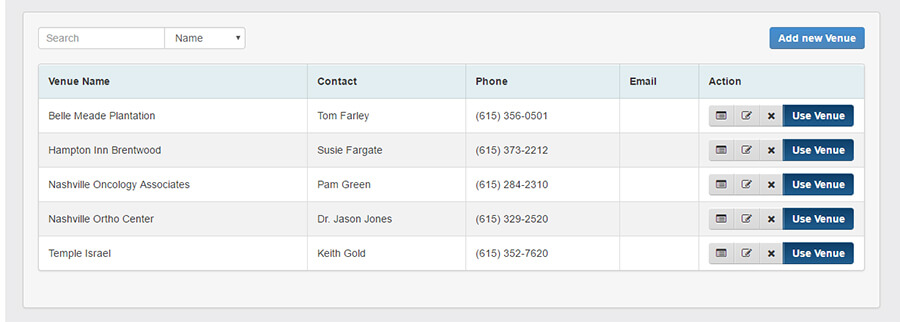
More → Venue Manager
Venues aren't customers. The same office park, church hall, or wedding barn gets catered by you for a dozen different customers, and every one of those deliveries needs the same information - which entrance, where to park, which elevator, who's got the key, loading dock is round back.
Venue Manager stores the venue separately from whoever booked it, with delivery notes that carry onto the order. Your driver stops calling the office for directions he's asked for four times already.
One thing before you set it up: the venue record wants a contact name. No on-site person? Put the booking contact or "N/A" in there. Operators have hit that field and assumed the feature wasn't built for venues like theirs. It was.
Requires the Venue Manager module.
10. Put your real menu and ordering on your own website
Admin → Restaurant Locations → your location → Embedded Menu or Embedded Ordering
CaterZen generates embed code for your menu, and separately for menu plus full online ordering. Paste it into your own site. Customers never leave your domain, your menu's never out of date because it's the one you're already maintaining, and search engines actually see the content - because it's on your page, not buried behind a link-out.
The common mistake: linking out to a separate ordering page instead. You lose people at the handoff, and now you're updating your menu in two places, forever.
Requires the Menu Embedding module.
Running the kitchen
11. Build the production report your kitchen actually wants
Admin → Kitchen and Production Report → Configure Kitchen and Production Report Settings → Settings → Manage Custom Production Reports
Beyond the standard food prep report, you can build your own - choose what shows up, group it the way your kitchen actually works, run it across any date range, including a full month for long-lead production.
Pair it with Prep Stations. You tag each ingredient in a menu item's formula with the station that makes it - smoker, cold prep, bakery - and the report groups by station from there. Manage Prep Station Items in that same bubble lists what you've created, though the tagging itself happens in the formula editor.
Build this one if you produce anything on a long lead time - one bakery runs a month-range custom report just to plan king cake production.
Requires the Production Reports module.
Learn more about Kitchen Production Reports.
12. Close the days you're actually closed
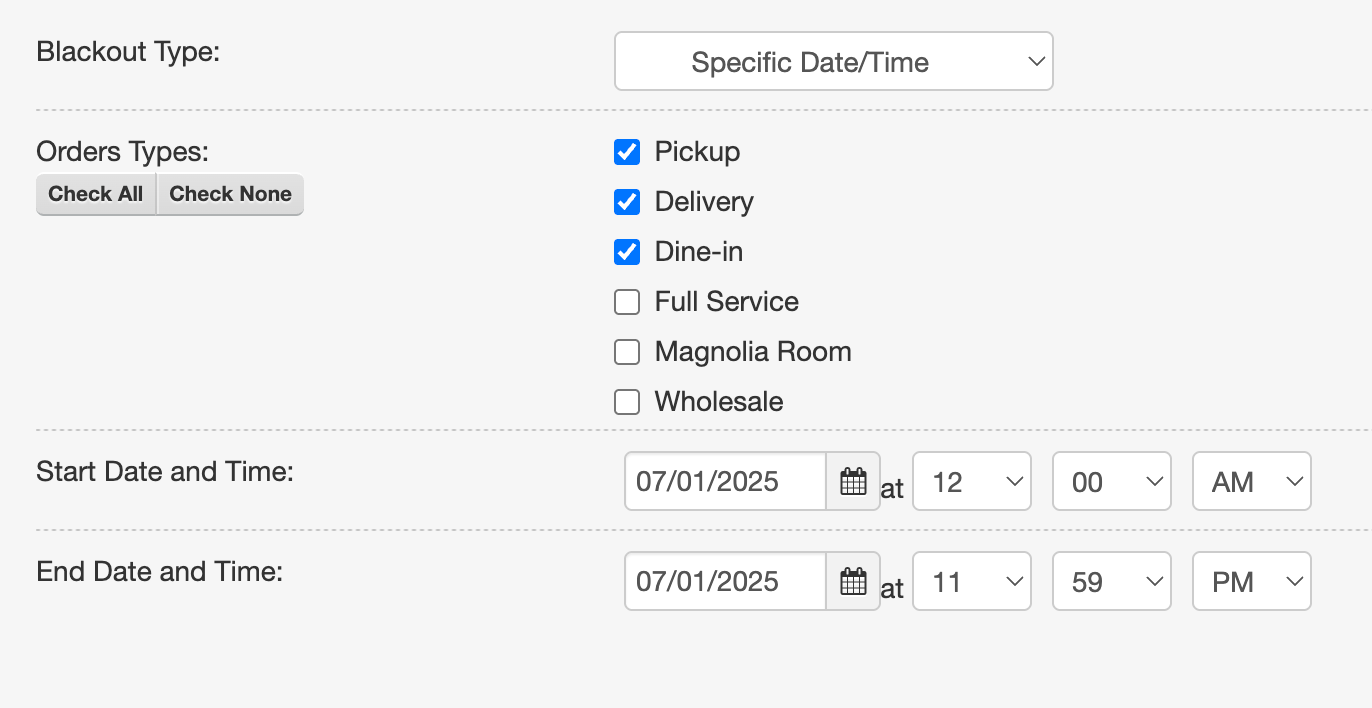
Admin → Restaurant Locations → your location → Black Out Dates
Blackout dates stop customers from booking a delivery date you can't serve. Christmas. The Fourth. The week your crew's at a festival. The Saturday you're already maxed out.
Without it, the order lands at 11pm on a holiday, nobody sees it, and you find out when the customer calls asking where lunch is. With it, they simply can't pick that date.
While you're in there
A few more that came up again and again as things people didn't know existed:
- House accounts. Let your regulars order without a card on file. Tick "Pay by House Account" in that location's Payment Options, then "Is permitted to pay with house acct" on each contact's CRM record.
- Move an order to a different location. Open for editing, change the location, save. No re-keying.
- Grant loyalty credit by hand. Phone order, or fixing a mistake? Go to Marketing → Loyalty Program → the member → Grant Certificate Dollars. Enter the reward amount they should have earned — not the order total.
- Edit a tip straight from the invoice list. Go to Accounting → Invoices, click the amount in the Tip column, and save - no need to open the order. Requires "Allow tips to be added to orders at checkout" turned on under Admin → Restaurant Locations → your location → Online Ordering Settings — despite the name, that setting also controls this back-office column, not just the customer checkout flow.
- Pull a customer's full order history by date range. On the Overview tab, scroll to the bottom, hit View All Orders, then set the date range.
- Price your menu differently by location. Pricing tiers let downtown charge downtown prices.
- See the driver's delivery photo. If your driver snaps one at drop-off, open the order and choose Delivery Images from the Choose a Function dropdown.
- Import your existing customer list. Excel or CSV, straight into the CRM. Heads up — anyone already in there, matched by email or by name plus company, gets updated to match your spreadsheet rather than added twice. Usually what you want, but check the file first.
- Control what each employee can access. Admin → General Settings → Manage Employees. Decide who can view accounting, manage orders, run reports, or access admin settings, set individually for each employee.
The point
None of this is new. Most of it's been in CaterZen for years.
The features that move the needle are usually the ones nobody demoed for you — because they weren't the reason you bought the software. They're the reason you keep it.
If you're already a client: pick two off this list, and if they're not switched on, email support and ask. Or skip the digging entirely - book a demo and we'll walk the whole list with you, feature by feature, for your operation specifically.
If you're not on CaterZen yet: this is what's actually inside the account from day one — not a features list, a working system. Start a free 30-day trial and go find out what else is in there.
Either way - depth like this doesn't announce itself. Go find it.