You sent the quote. Then what?
If you're like most caterers, nothing. Somebody meant to call and got busy, and the quote sat in an inbox until the event went to the other guy.
When I ask a business for a quote, conservatively, three times out of four nobody calls or emails me back. Not once. Owners blame their advertising when the follow-up is to blame.
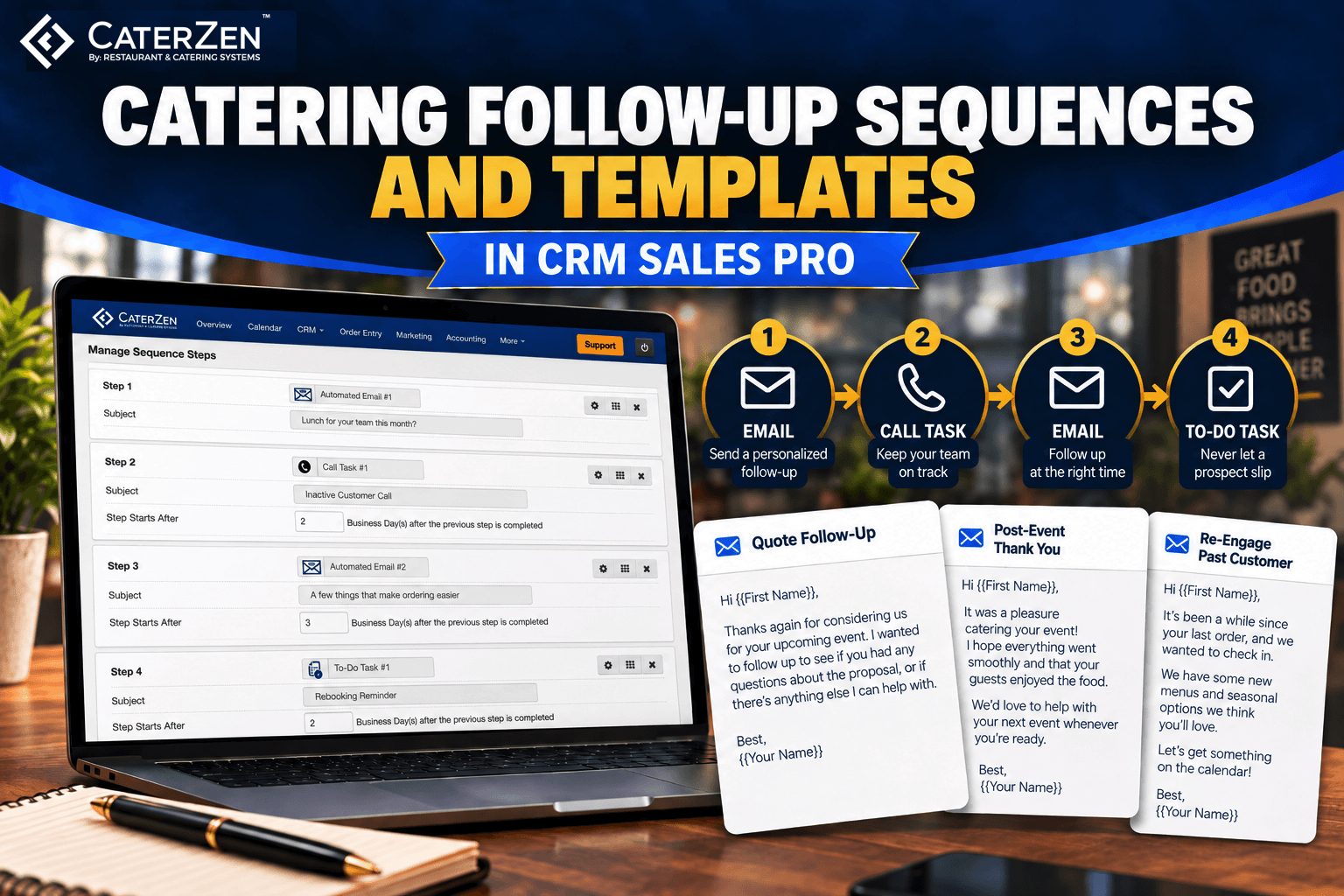
A catering follow-up sequence makes the follow-up happen. It is a saved plan for one contact: which email goes out, when your rep should call, and what to check before the next message. CRM Sales Pro now has Sequences, along with Email Templates for one-to-one Gmail messages and for campaigns.
I won a lot of catering business just by following up. Prospects told me I got the job because, in their words, "If you do half as good a job catering as you do following up, we know the event will be a big success."
Chances are most of your competition isn't following up either. You only have to be a little better than they are.
There is no silver bullet. Nothing replaces selling. But a system keeps your selling from depending on whoever happens to remember.
When we introduced CRM Sales Pro, the promise was fewer catering orders lost to slow follow-up. Marketing Lists gave your team the right people to contact. Sequences and Email Templates give them the next step for each person, and the words to use.
This post covers what is new, seven sequences worth building first, and six Gmail templates you can copy into your account today.
Already on CRM Sales Pro? Sequences and Email Templates are in your admin under the CRM menu. New to CaterZen? Start your free 30-day trial and build your first sequence this week.
What is a sequence in CRM Sales Pro?
A Sequence is a list of steps that runs on one contact over days or weeks. Each step is an automated email sent from the rep's own Gmail, a call task, or a to-do task, and each waits a set number of business days after the step before it. Emails go out only on the days and between the hours you choose, such as Monday to Friday, 8 AM to 5 PM.
Think of it as the follow-up you would do yourself if you never got busy.
There are three kinds of step:
- Automated email. Sends from the rep's connected Gmail address, using a Sequence email template. The contact's first name and the rep's signature fill in automatically.
- Call task. Puts a call on the rep's task list with the instructions you wrote on it.
- To-do task. Puts any other job on the task list, such as checking a customer's order history before the next email goes out.
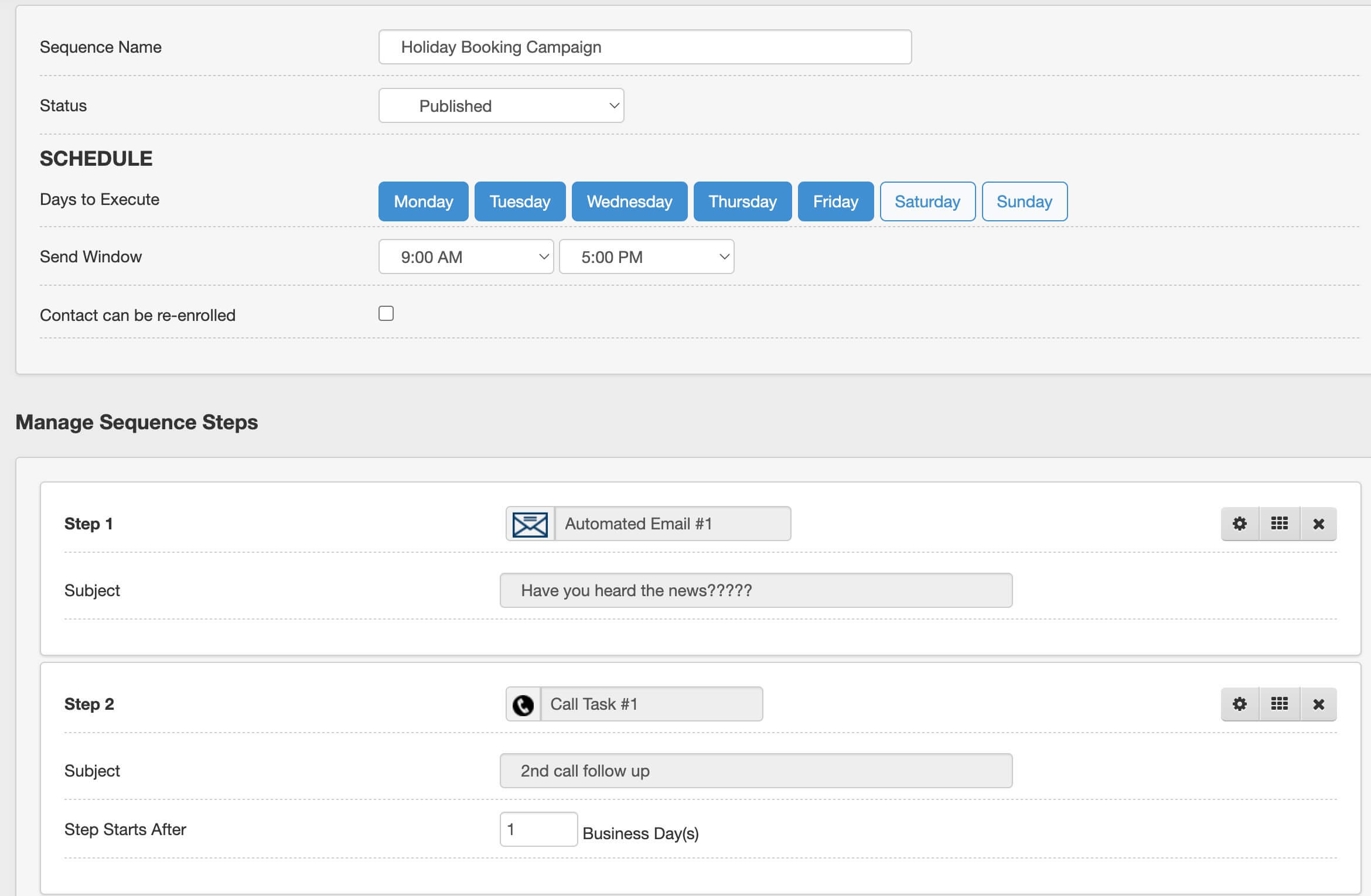
Here is what to know when you build one:
- The first step has no wait. When you enroll a contact, you choose Now or a start date and time, and the first step goes out inside your send window.
- Every step after that waits in business days, as few as one day apart.
- Build it as a Draft and publish it when you are ready. A contact can only be enrolled in a published sequence.
- Enroll one contact from their record, or a whole Marketing List at once with the Enroll in Sequence button.
- Once contacts are enrolled, the sequence is locked. To change it, use Duplicate and Edit, which makes a copy.
How does a contact leave a sequence?
A contact leaves a sequence when they reply to one of its emails, finish the last step, or a rep unenrolls them from their contact record.
A reply unenrolls the contact automatically. That matters. Nothing sours a good customer faster than a robot emailing them in the middle of a conversation with a human. When they answer, the sequence stops, and your rep takes over.
CaterZen sees replies through the forwarding step under Google Integration, which each sender sets up once.
A few more rules:
- An unenrolled contact keeps their progress. With "Allow contacts to resume after unenrolling" switched on, a rep can pick them back up later without repeating steps.
- A contact who opts out of email stops getting the automated emails. The call and to-do steps carry on.
- A contact can be in one sequence at a time.
- A finished sequence cannot be restarted.
Which sequences should a catering sales rep build first?
Build the sequences that match the moments when catering orders go quiet: after a first order, after a quote, after a new inquiry, after a tasting, and when a good customer stops ordering. Seven that fit most caterers are below. Every wait is in business days.
Build each one as a Draft, read every email out loud once, and publish when it sounds like you. If it sounds like a form letter, your customer will read it like one.
Email keeps you in front of them. The phone closes the sale. That is why every sequence below has a call in it.
1. After a first order
Enroll when: the first catering order has been delivered. Goal: a second order.
The first order is a tryout. Treat it like one.
- Email, right away. "How did everything go?"
- Call task, 2 business days later. Thank them for the order. Ask which meetings or events they cater regularly and who else in the office orders food.
- Email, 3 business days later. Standing orders for a weekly meeting, and a house account for one monthly invoice.
- To-do task, 5 business days later. Check whether a second order came in. Note what they ordered and the headcount.
- Email, 5 business days later. Larger events: all-hands meetings, client visits, office parties.
The first email, as a template:
Subject: How did everything go?
Hi {FIRST_NAME},
Thank you for your first catering order with us. I hope everything arrived on time and your group enjoyed it.
How did it go? If anything wasn't right, reply and tell me. I read every reply and I'll make it right.
{SIGNATURE}
2. Quote follow-up
Enroll when: the day after a quote goes out and you have not heard back. Goal: a yes, or a clear no so a date is not held forever.
Quoting is necessary. The money is made in closing.
- Email, right away. "Checking on your catering quote."
- Call task, 2 business days later. Ask whether the quote answers their questions and what would change it.
- Email, 3 business days later. Offer to adjust the headcount, menu or budget.
- To-do task, 3 business days later. Decide whether to keep holding the date.
- Email, 2 business days later. A last note saying you will release the date unless you hear from them. Mean it.
3. New inquiry
Enroll when: someone asked about catering and has not ordered. Goal: a date and a headcount in hand.
Somebody who just asked about catering is the warmest lead you will ever get. Do not make them wait on you.
- Email, right away. Thank them, and ask for the date, the headcount and the delivery address.
- Call task, 1 business day later. Call to fill in the details.
- Email, 2 business days later. Send a link to your online menu and what a typical order for their headcount looks like.
- Email, 4 business days later. A short "still planning?" note.
4. Win back a quiet customer
Enroll when: a customer has not ordered in six months. Build the list first with the steps in Who Hasn't Ordered in Six Months? Goal: one more order, or the name of the person who orders now.
Cold calling sucks. This is not cold calling. These people already know your food.
- Email, right away. "Lunch for your team this month?"
- Call task, 2 business days later. Ask about meetings and events coming up, and whether anything about their last order could have been better.
- Email, 3 business days later. Three things that make ordering easier: online ordering, a standing order, a house account.
- To-do task, 2 business days later. Look at their order history so a personal offer fits.
- Email, 3 business days later. "Should I keep you on my list?" with a request for the right contact if someone else orders now.
5. Tasting or site visit
Enroll when: someone has just tasted the menu or toured your space. Goal: a booked date.
Sampling is the oldest sales tool there is. Do not waste it by going quiet afterward.
- Email, right away. Thank them and ask which dishes stood out.
- To-do task, 1 business day later. Write the proposal while the visit is fresh.
- Call task, 2 business days later. Walk them through the proposal.
- Email, 4 business days later. Ask for the date.
6. Early booking for a busy season
Enroll when: six to eight weeks before the holidays or your busiest season, for customers who ordered last year. Use a Marketing List. Goal: dates booked before the rush.
Your best customers are about to plan their party. Be the first one who asks.
- Email, right away. "Planning this year's holiday party?"
- Call task, 3 business days later. Offer the menu they ordered last year, or a fresh one.
- Email, 4 business days later. A last call for preferred dates. Only say dates are filling if they are.
7. Same time next year
Enroll when: eight to ten weeks before the anniversary of a yearly event, such as a company party, a fundraiser or a graduation. Goal: the repeat booking.
When someone booked an event we knew came around every year, we picked up the phone a couple of months before the anniversary. Never assume you are a shoe-in. Often that call uncovers a new person in charge, and you want to be the resource who helps them pull the event off without a hitch.
- Email, right away. "Planning this year's event?"
- To-do task, 1 business day later. Pull up last year's order and headcount for the call.
- Call task, 2 business days later. Offer the same menu or a new one.
- Email, 4 business days later. Say you are holding the date.
You can run all seven by hand. Back in the day I ran my follow-up with Word, Excel and a lot of hustle. It works. But why would you? CaterZen just makes it simple: the plan runs itself, and your rep only has to show up for the calls.
Want these running before your next event? Start your free 30-day trial and build the quote follow-up sequence in an afternoon.
What are Email Templates in CRM Sales Pro?
CRM Sales Pro Email Templates are saved emails, and each one has a Type that decides where it can be used: one-to-one Gmail messages from a contact record, automated steps inside a Sequence, or marketing campaigns. Pick the Type when you create the template.
Write the good version once. Stop retyping the same thank-you every week.
| Type | Where it is used | Example |
|---|---|---|
| CRM | One-to-one emails sent from a contact record through the rep's Gmail | A quote follow-up |
| Sequence | Automated email steps inside a Sequence | Step 1 of the first-order sequence |
| Campaign | Bulk emails to a Marketing List | A monthly special |
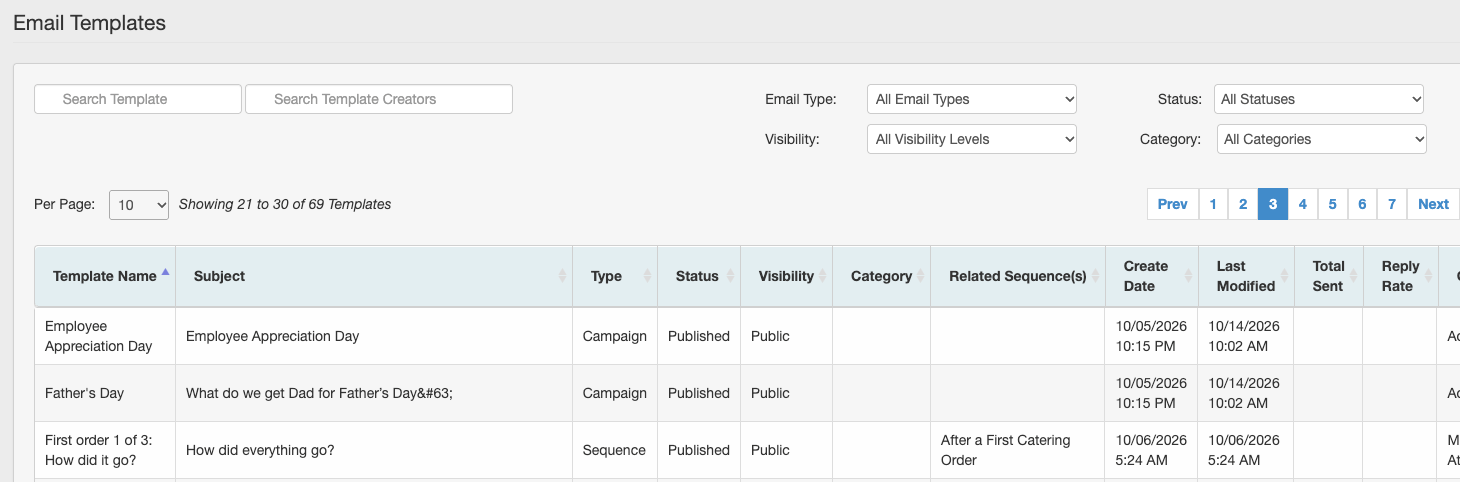
Each template also has a Visibility setting. Private means only you can use it, and Public means everyone on your account can.
The Email Templates page lists every template with its Type, Category, how many times it was sent and its reply rate, so you can see which wording gets answered. Reply rate counts the replies CaterZen can see, so set up the forwarding step under Google Integration.
Merge fields fill in each contact's details. Type them in capital letters with curly braces: {FIRST_NAME}, {LAST_NAME}, {CUSTOMER_NAME}, {CUSTOMER_COMPANY_NAME}, {CUSTOMER_ADDRESS}, {CUSTOMER_PHONE}, {CUSTOMER_MOBILE}, {CUSTOMER_EMAIL} and {SIGNATURE}. A tag typed in lowercase appears in the email exactly as typed. {SIGNATURE} works in the body of an email and not in the subject line.
Which Gmail templates should a catering rep save first?
Six one-to-one templates cover most of a catering rep's week: a reply to a new inquiry, a quote follow-up, a thank-you after a tasting, a thank-you after an event, a check-in with a quiet customer, and a standing-order pitch. Create each as Type CRM and set Visibility to Public if the whole team should use it.
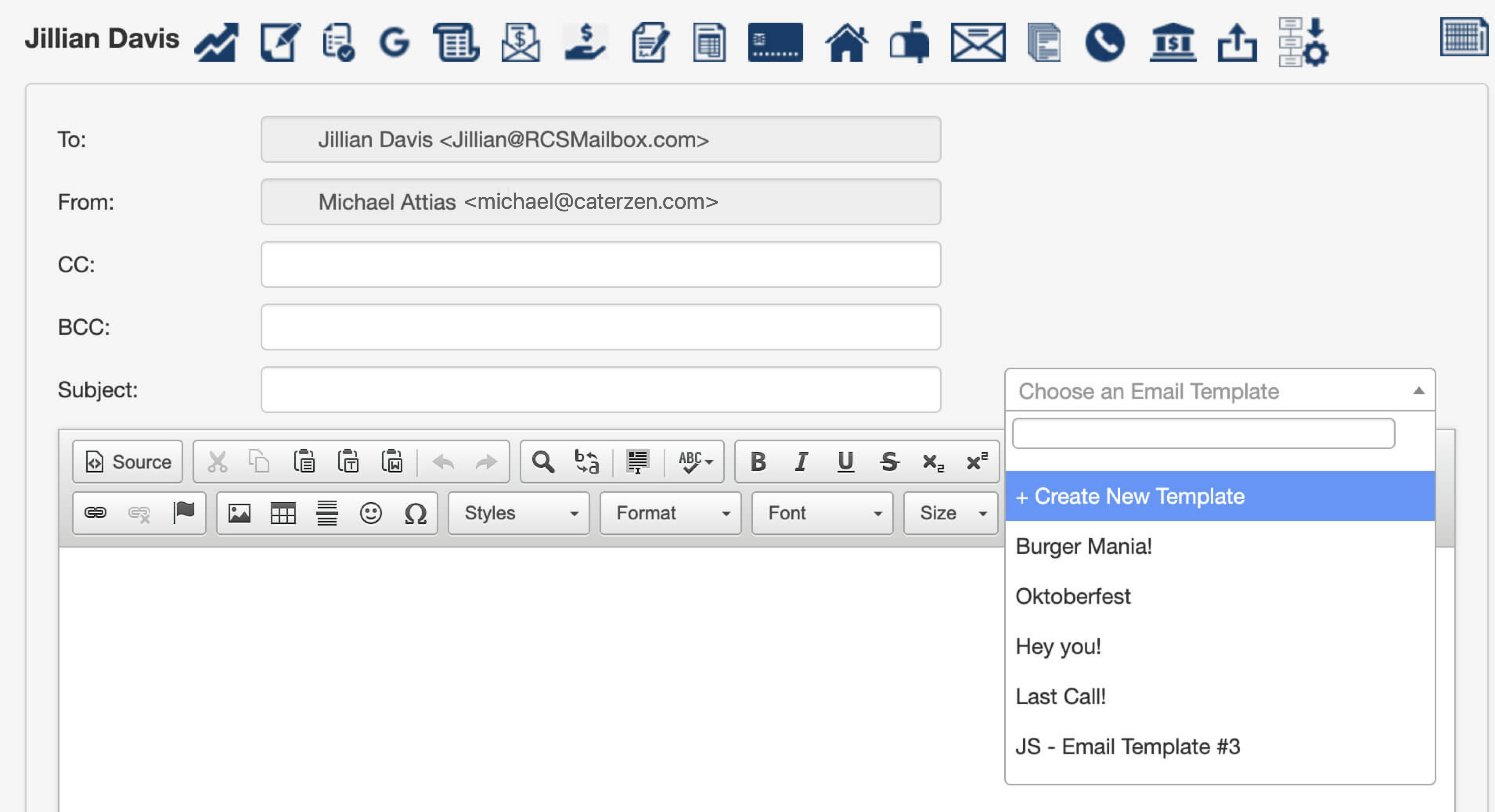
Before you save them, change any promise to one you keep, and check that your contacts have first names. A contact with no first name gets "Hi ," at the top of the email. That is the fastest way to look like a robot.
1. Reply to a new inquiry
Subject: Your catering inquiry
Hi {FIRST_NAME},
Thank you for thinking of us for {CUSTOMER_COMPANY_NAME}. To put a quote together I need the date, the headcount and the delivery address.
Reply with those and I will send a menu and pricing the same day. If it is easier to talk, tell me a good time to call.
{SIGNATURE}
2. Quote follow-up
Subject: Checking on your catering quote
Hi {FIRST_NAME},
I wanted to make sure the quote I sent for {CUSTOMER_COMPANY_NAME} reached you and answers your questions. If the headcount, menu or budget has changed, tell me and I will adjust it today.
I am holding your date for now. Let me know if you would like me to keep holding it.
{SIGNATURE}
3. After a tasting
Subject: Thank you for tasting with us
Hi {FIRST_NAME},
Thank you for coming in to taste the menu. I would like to hear which dishes your group would enjoy most and anything you would change.
Send me your preferred date and headcount, and I will turn what you liked into a proposal.
{SIGNATURE}
4. After an event
Subject: Thank you for choosing us
Hi {FIRST_NAME},
Thank you for letting us cater for {CUSTOMER_COMPANY_NAME}. I hope the food arrived on time and your guests enjoyed it.
If anything was not right, reply and tell me so I can fix it. If it all went well, I would be glad to cater your next event. Just reply with the date.
{SIGNATURE}
5. Checking in with a quiet customer
Subject: Lunch for your team this month?
Hi {FIRST_NAME},
It has been a while since we last catered for {CUSTOMER_COMPANY_NAME}. Do you have a meeting, training day or team lunch coming up?
Reply with a date and a headcount and I will have a menu and a quote back to you today.
{SIGNATURE}
6. Standing-order pitch
Subject: Make your weekly lunch automatic
Hi {FIRST_NAME},
If {CUSTOMER_COMPANY_NAME} has a regular meeting, we can set up a standing order so the food arrives without anyone having to remember to place it.
Tell me the day, time and headcount and I will set it up for you.
{SIGNATURE}
Can I save my own templates for campaign emails?
Yes. Campaign emails, the bulk emails you send to a Marketing List, can now start from templates you save yourself. Before this release you could start from a blank email, one of CaterZen's monthly templates, or a past campaign. The templates you save now sit in the same list as ours.
To make one, open Email Templates, choose Type Campaign, then pick a Category.
The Category list runs January through December, and a new Evergreen category sits at the top for emails that are not tied to a month. Good candidates for Evergreen:
- A menu overview you can send any time.
- A pitch for standing orders and house accounts.
- A thank-you to everyone who ordered in the last quarter.
- A request for introductions to other teams at the same company.
CaterZen's own year-round templates are filed under Evergreen too, so a campaign you start from any list finds the always-on emails first. The campaign editor also has a Mail merge fields toolbar, so a first name drops in with a click.
What is coming next: texting in CRM Sales Pro
Next we are adding text messaging to CRM Sales Pro in two places. A Sequence will be able to include a text step next to the email and call steps, and reps will be able to text a contact one to one from the contact record.
Texts come from the rep's own number, the same number they already use for calling, and that number will be approved for business texting (A2P).
Frequently asked questions
Do Sequence emails send from my own email address?
They send from the rep's connected Gmail account, so replies come to that rep's inbox. CRM Sales Pro sequences work with Gmail today. Outlook is not supported.
How many contacts can I enroll, and how many emails can go out?
Each user can enroll up to 250 new contacts in a rolling 24 hours, and one sender can send up to 250 sequence emails in a rolling 24 hours. One-to-one emails the rep sends from the contact record count toward the 250 emails.
What happens when a contact opts out?
Every sequence email carries an opt-out link. A contact who has opted out receives no more automated emails from your sequences, and the call and to-do steps still appear for your rep.
What happens when a contact replies to a sequence email?
The contact is unenrolled automatically, so the sequence stops and no more automated emails go out. The reply lands in the rep's Gmail inbox, and the rep answers personally. CaterZen sees replies through the forwarding step under Google Integration, so each sender sets that up once.
Do I need CRM Sales Pro to use Sequences, and what does it cost?
Yes. Sequences and Email Templates are part of CRM Sales Pro, which is priced by location. Users are unlimited and there is no per-seat charge. Each team member just needs to be assigned a seat. The price is $35 per location per month right now, an early-bird rate. It moves up toward $50 per location as more features are released.
Build one sequence this week
Don't build all seven. Pick the moment where your orders go quiet, most likely the days after a quote, and build that one first. Read the emails out loud. Publish it. Then watch what happens to the quotes that used to sit.
Unless your food and service suck, the caterer who follows up beats the caterer who doesn't. Most of them don't.
Start your free 30-day trial or book a demo to build your first sequence on your own catering data. Want the bigger picture of what the catering CRM does? Start there.